Review & Submit a Travel Request Created for you by a Delegate
Overview
As needed, Travel Requests can be created for an employee traveler by a Request Delegate or KU SSC, LSI, or IPSR support staff. However, the traveler must review trip data entered, perform any acknowledgements, and Submit their own Travel Request in the Concur system.
A departmental Request Delegate must be set up by the individual employee traveler in order for the delegate to Act As the employee traveler to create their Travel Request. Please note, Request Delegates should only be set up if it is that individual's job duty to assist with Travel Request creation.
This guide walks employee travelers through how to open up, review, acknowledge, and Submit their Concur Travel Requests.
Step One:
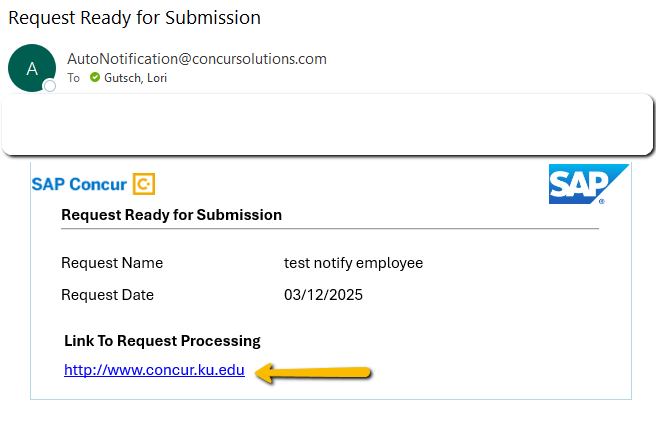
You will receive a Request Ready for Submission email from Concur. Log into Concur via KU/KUMC SSO using the concur.ku.edu link provided in the email.
Step Two:
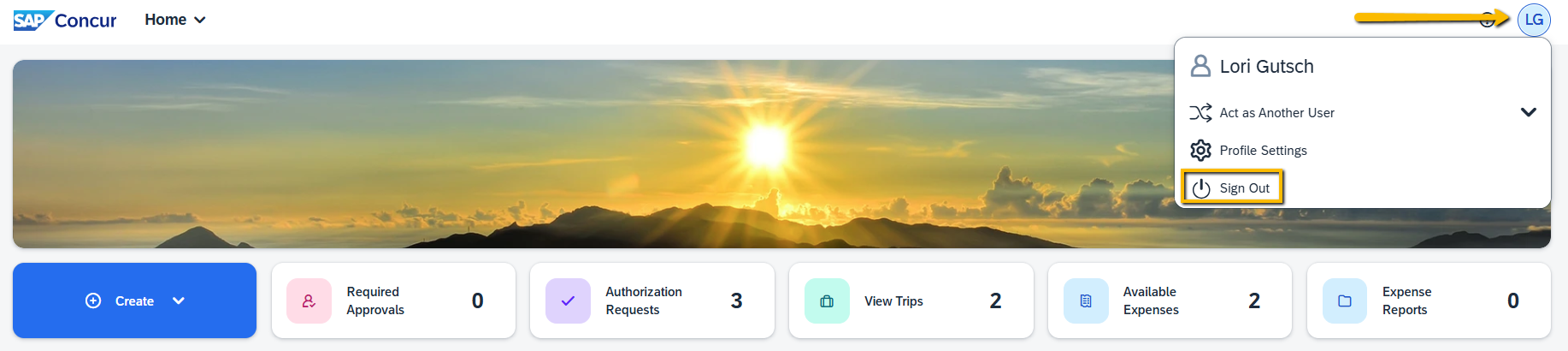
Navigate to the Requests application either from the dropdown menu, or by selecting the Authorization Requests (from the quick tasks just under the picture).

Step Three:
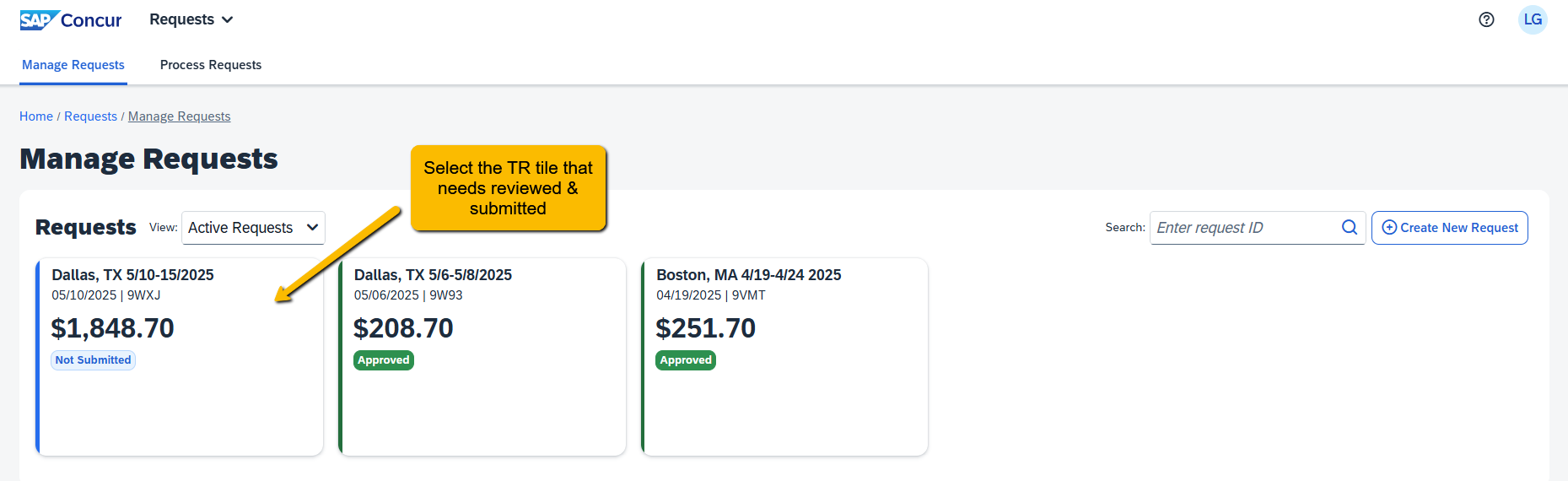
Select the "Not Submitted" Travel Request tile that needs to be reviewed, acknowledged, and submitted into approval workflow.
Step Four:
In addition to reviewing the Expected Expense estimates, open and review the Request Header for accuracy. Make any edits or additions as needed to your Travel Request. NOTE: KUMC employees will itemize out expected expenses estimates in Workday.

Step Five:
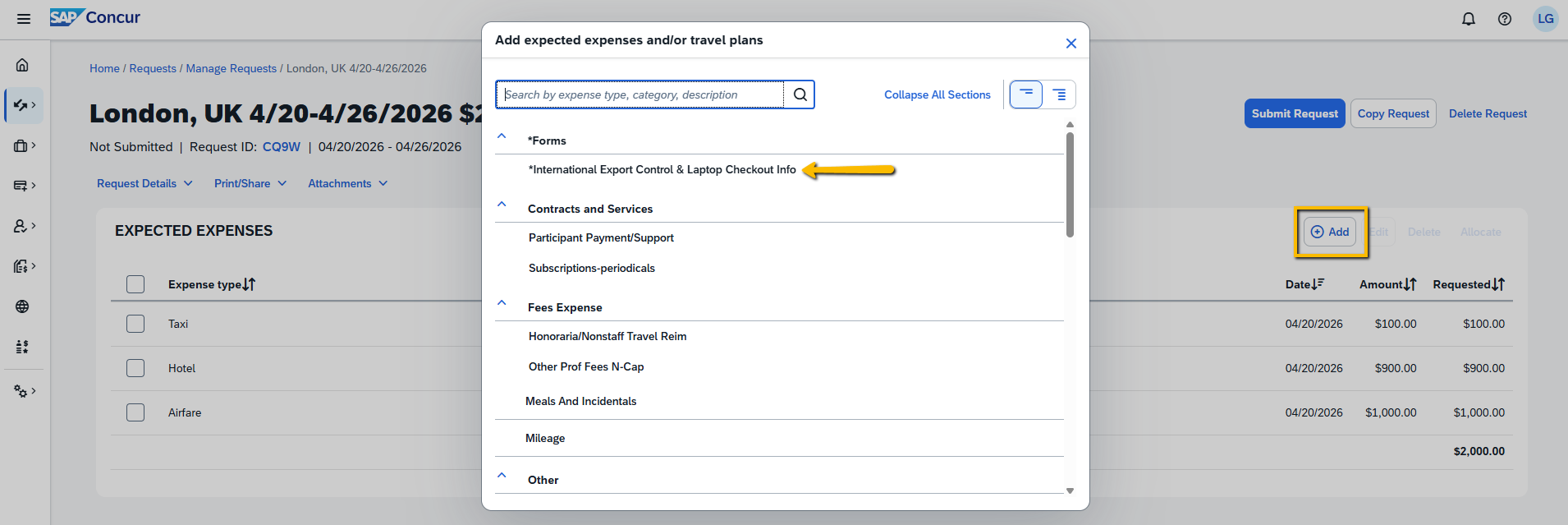
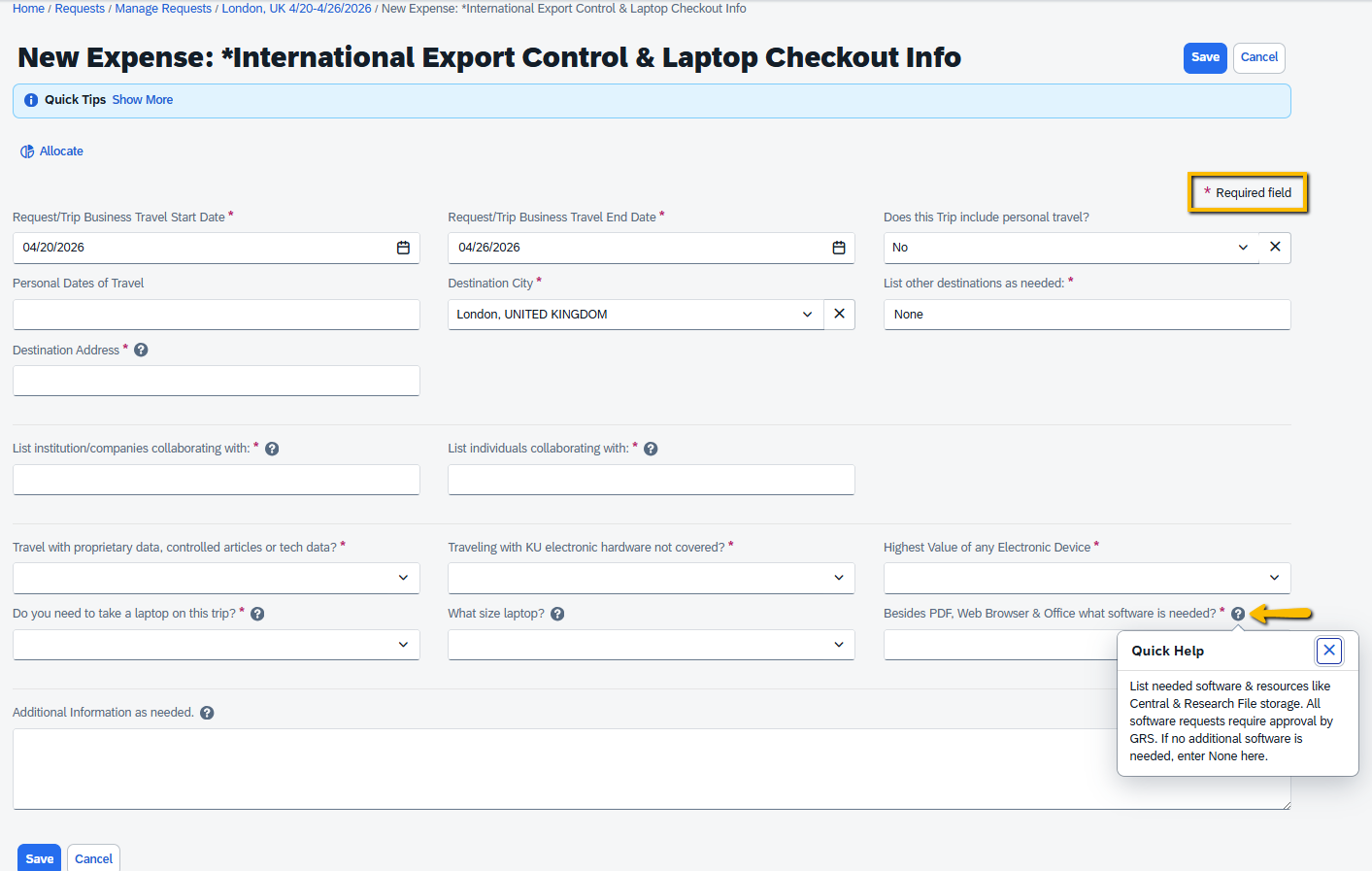
For International Travel Requests, travelers are required to Add the International Export Control & Laptop Checkout Info Form, add Attachments, and complete any Travel Risk Advisory Alert acknowledgements before you Submit your TR by following the last steps.
Select the Add button and choose the International Export Control & Laptop Checkout Info form, then fill out the fields and Save.
- Select Attachments to attach documents to help support or explain your travel purpose or funding sources, such as:
- conference or meeting agenda
- research daily itinerary
- travel award funding confirmation email
- designated department funding email
- NOTE: Please do not attach actual travel receipts here in your TR. Receipts need to be submitted in your Workday Expense Report.
- If you have an Alert at the top of your screen, open the alert message using the dropdown on the right side of the Alert box.
- Select the View link to access and click on the Travel Risk Advisory link to review the Riskline travel risk advisory for your trip location.
- Then you can go back to Concur to check the Consent box to indicate you have reviewed the travel risks and acknowledge your understanding of the risk to travel to the location.
- NOTE: A Travel Request with this Travel Advisory Alert CANNOT be submitted without the traveler opening the Travel Advisory and Consenting. Request Delegate support staff are not allowed to consent on behalf of others. This Consent and TR Approval replaces the previous High-Risk Waiver and Redcap forms and risk review process.


Step Six:
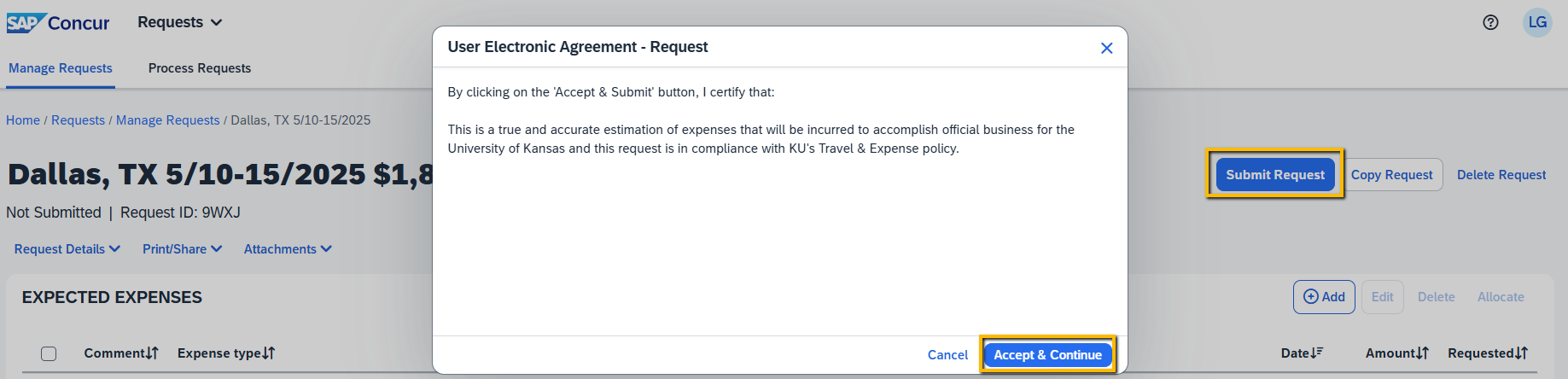
If all trip data is accurate and moderate/high-risk Alert consented as needed, select Submit Request and acknowledge the accuracy by selecting Accept & Continue to submit Travel Request into approval workflow.
Step Seven:
When you ready to leave Concur, the Sign Out is found in the upper right corner of the screen where the Profile Settings are found.