Creating an International Concur Travel Request
Overview
Regardless of funding source, KUMC employees or their Request Delegate should create an International Travel Request (TR) in Concur for all university-related travel outside of the US. This includes personal travel where university business will be done, KUMC technology is needed, or you will be representing KUMC or your profession while traveling.
International Concur TRs are needed as a means to facilitate and document travel risk acknowledgements, required Travel Threat Committee review and approval for high-risk travel locations, and kick off the loaner laptop program. By creating a Concur TR you help ensure Duty of Care, Export Control, IT Security, and Travel Insurance coverage.
Step One:
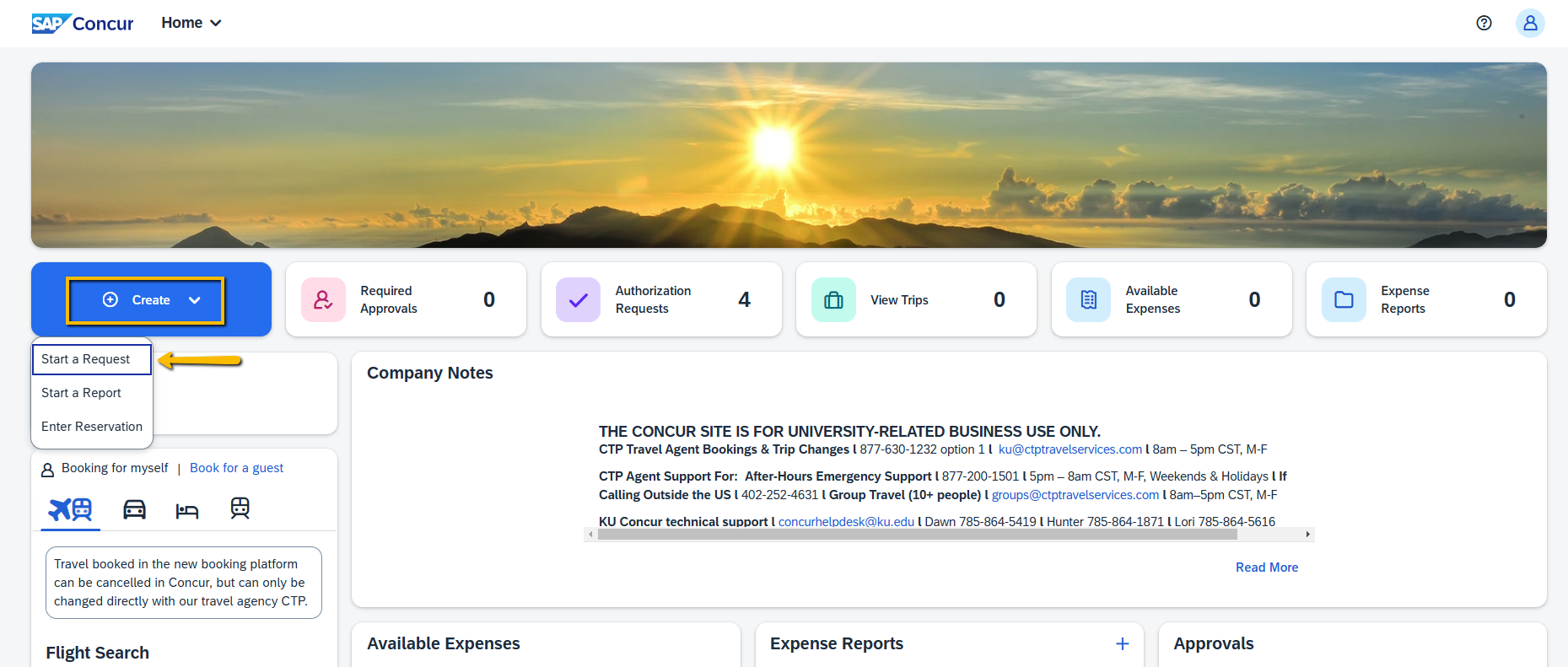
From the Concur Home Page (accessed through your KUMC Single Sign On (SSO) at concur.ku.edu):
- Select the + Create dropdown
- Choose Start a Request
Step Two:
On the Create New Request (or Request Header) page:
- Complete all required fields indicated with a red asterisk next to the field title and any of the optional fields necessary to assist in the completion and approval of your TR.
- Select the Create Request button at the bottom right to go to the Expected Expenses page where you will enter your estimated travel expenses. See field descriptions below for more details.
Request Header Field Descriptions:

- Request Policy - Leave KU Med-International Travel Request as the Request Policy.
- Company - Use the dropdown to select if the trip is funded by KUMC University of Kansas Medical Center or RINST KUMC Research Institute.
- Request/Trip Name - Required naming convention for consistency across campus: Enter name as Destination City, Country and Dates of Travel.
- Example: Rome, Italy 12/15-12/30/2025
- field has a 32-character limit
- Request/Trip Start & End Dates - Dates your travel starts and ends, includes both business and personal days if applicable.
- Destination City - Start typing the destination city and Concur will provide a list of global destinations available to select from. The Destination Country will auto-populate based on your Destination City selected.
- Email fsku@ku.edu if the destination you are traveling to is not listed and they will add it.
- If traveling to more than one location, select where you plan to spend most of your time and indicated the other locations in the List Other Destinations field.
List Other Destinations if Needed - list other trip destinations. If you run out of space in this field, please add other destination in the Explain Business Purpose & Funding field.

- Trip Type - Select appropriate Trip Type from the drop-down list.
- Only over night Out-of-State and International TRs are required by policy. However, some departments require their travelers to have a TR for all travel regardless of location, so an In-State option is available for Domestic Travel Requests.
- Traveler Type - Your Traveler Type will default based on your HR Pay status.
- Request/Trip Purpose - Select appropriate generic Trip Purpose from the drop-down list. Used for reporting purposes.
- Personal Travel - Answer using the Yes/No drop-down list. If yes is selected, please enter personal travel dates in the Personal Dates of Travel field.

- Explain Business Purpose & Funding - This field has a 500 character limit and should be used to describe in detail what the business purpose of your trip is as well as what the funding source(s) of the trip. This is essentially your "Comment" box to include important information about your trip that needs documented.
- Extension of - Nothing needs to be done with this field. Ignore this field.
- Reconcilers/Approvers/Central Audit Workflow Comments - Travelers do not enter anything in this field. This field is used by reconcilers. approvers, and central audit to add comments as needed in the TR in workflow. Your comments/information is added in the Explain Business Purpose & Funding field.
- Create Request - Select Create Request button to create a TR ID number and navigate you to the Expected Expense page were you add your trip estimated costs.
Step Three:
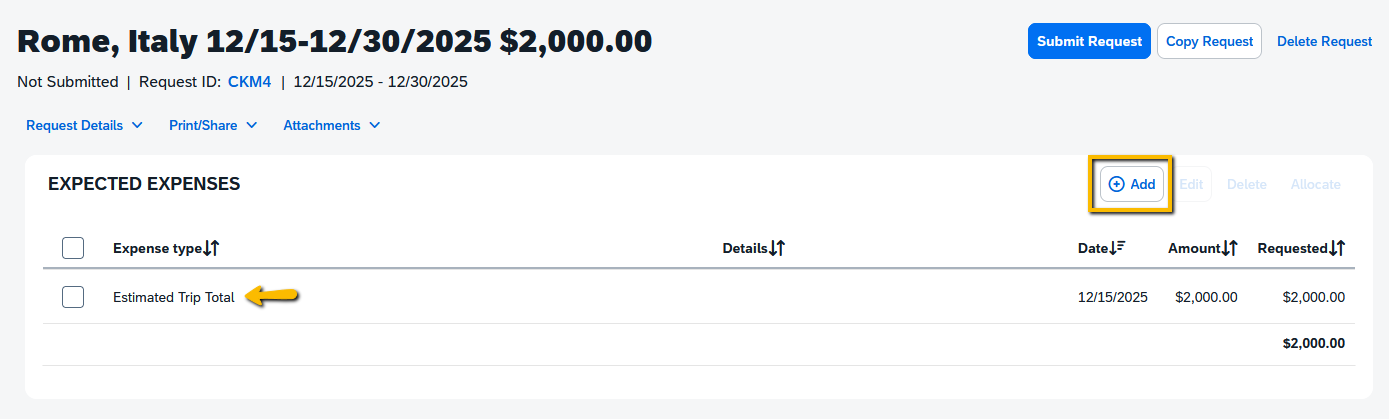
On the Expected Expenses page, add Estimated Trip Total that will be paid for or reimbursed by KUMC or KUMC RINST funds. This is your best estimation and not meant to be exact amount. If you have funds available, reimbursement can still be request after the trip for expenses not listed on your TR.
- Select the Add button, then select the Estimated Trip Total Expense Type.
Enter the total trip estimate in the Amount field, select Save.
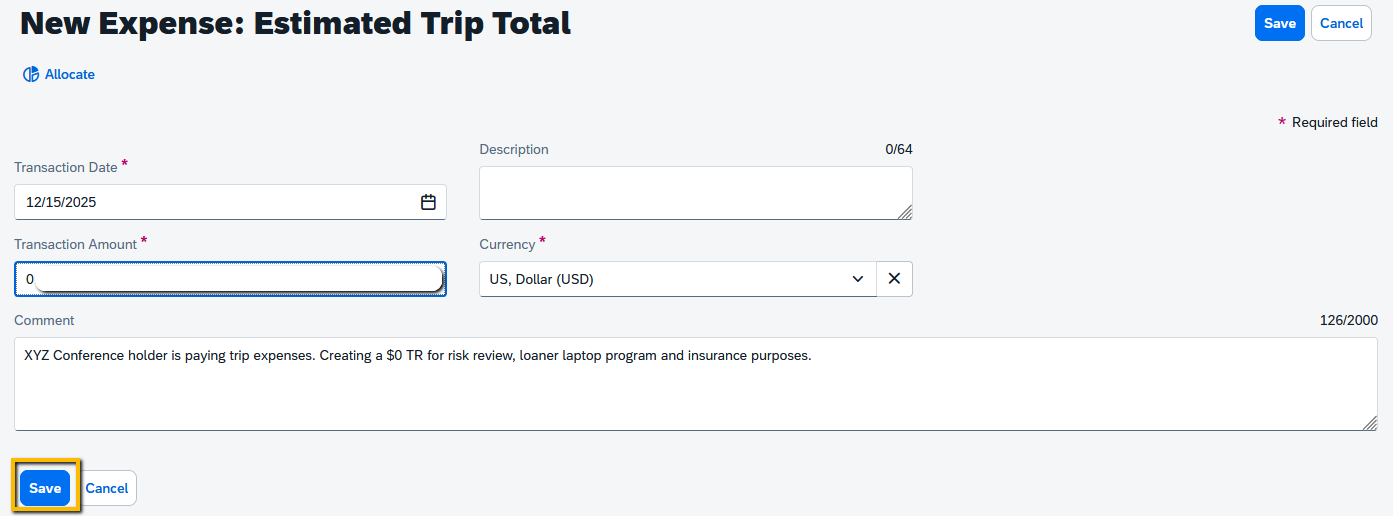
- Note: If your University-related travel will be fully paid for by a third-party entity (not KUMC or KUMC RINST) or paid personally without seeking reimbursement, a Zero-Dollar TR needs to be created. To do so, as your Estimated Trip Total enter the amount as 0 (with no dollar or decimal sign), add a comment explaining the external funding, and select Save. Then finish Step Four below to document your trip in the Concur system for institutional compliance and insurance coverage purposes. EXAMPLE of a $0 TR:
- Note: If your University-related travel will be fully paid for by a third-party entity (not KUMC or KUMC RINST) or paid personally without seeking reimbursement, a Zero-Dollar TR needs to be created. To do so, as your Estimated Trip Total enter the amount as 0 (with no dollar or decimal sign), add a comment explaining the external funding, and select Save. Then finish Step Four below to document your trip in the Concur system for institutional compliance and insurance coverage purposes. EXAMPLE of a $0 TR:
Step Four:
With your Estimated Trip Total expense amount added, finish and Submit your TR by following the last steps.
- Select Attachments to attach documents to help support or explain your travel purpose or funding sources, such as:
- conference or meeting agenda
- research daily itinerary
- travel award funding confirmation email
- designated department funding email
- NOTE: Please do not attach actual travel receipts here in your TR. Receipts need to be submitted in your Workday Expense Report.
- If you have an Alert at the top of your screen, open the alert message using the dropdown on the right side of the Alert box.
- Select the View link to access and click on the Travel Risk Advisory link to review the Riskline travel risk advisory for your trip location.
- Then you can go back to Concur to check the Consent box to indicate you have reviewed the travel risks and acknowledge your understanding of the risk to travel to the location.
- NOTE: A Travel Request with this Travel Advisory Alert CANNOT be submitted without the traveler opening the Travel Advisory and Consenting. Request Delegate support staff are not allowed to consent on behalf of others. This Consent and TR Approval replaces the current Redcap form and risk review process.


3. Select Submit Request.
4. A pop-up box will appear to confirm. Select Accept & Continue.
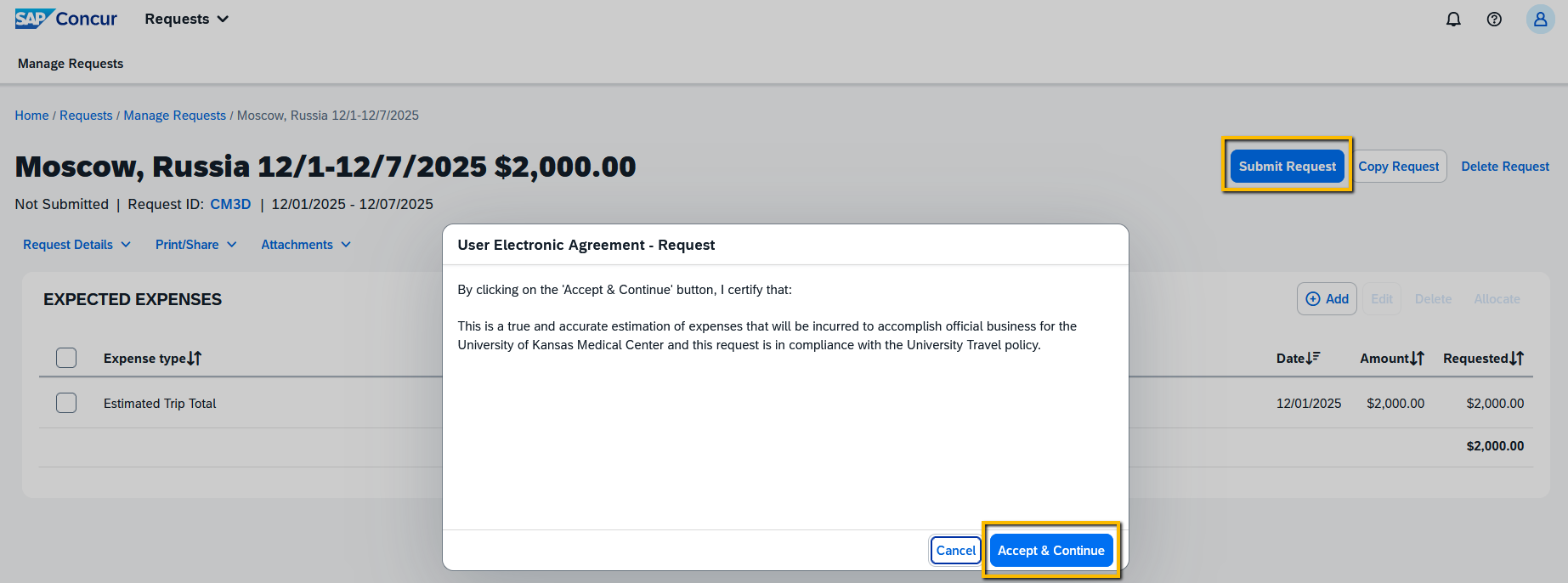
The Travel Request will then route to the following review/approval levels:
- International Threat Committee - reviews of travel safety/risk and export control by the following units:
- Global Risk & Security -reviews all International TRs
- General Counsel - reviews TRs with high-risk destinations
- International Programs - reviews TRs with high-risk destinations
- HR Leadership - reviews TRs with high-risk destinations
PLEASE BE AWARE: The day you submit an International TR, you will receive an auto-email from GRS via Concur with additional information including a required Export Controls and International Laptop Checkout TDX form link that asks for export control and IT security information. You MUST complete and submit that form in order for GRS to approve your Concur TR and to kick off the required loaner laptop process. If GRS has not received your TDX form within 3-4 days, they will forward the original email back to you with a message reminding you to fill out the required form.
Upon final Concur TR approval, an email supplying the TR details is sent to the traveler indicating the Status of their Concur Travel Request (TR) is Approved as well as information about needing to complete the Workday Spend Authorization that was started for the trip based on the approved TR information.
Additional Helpful Travel Request Information
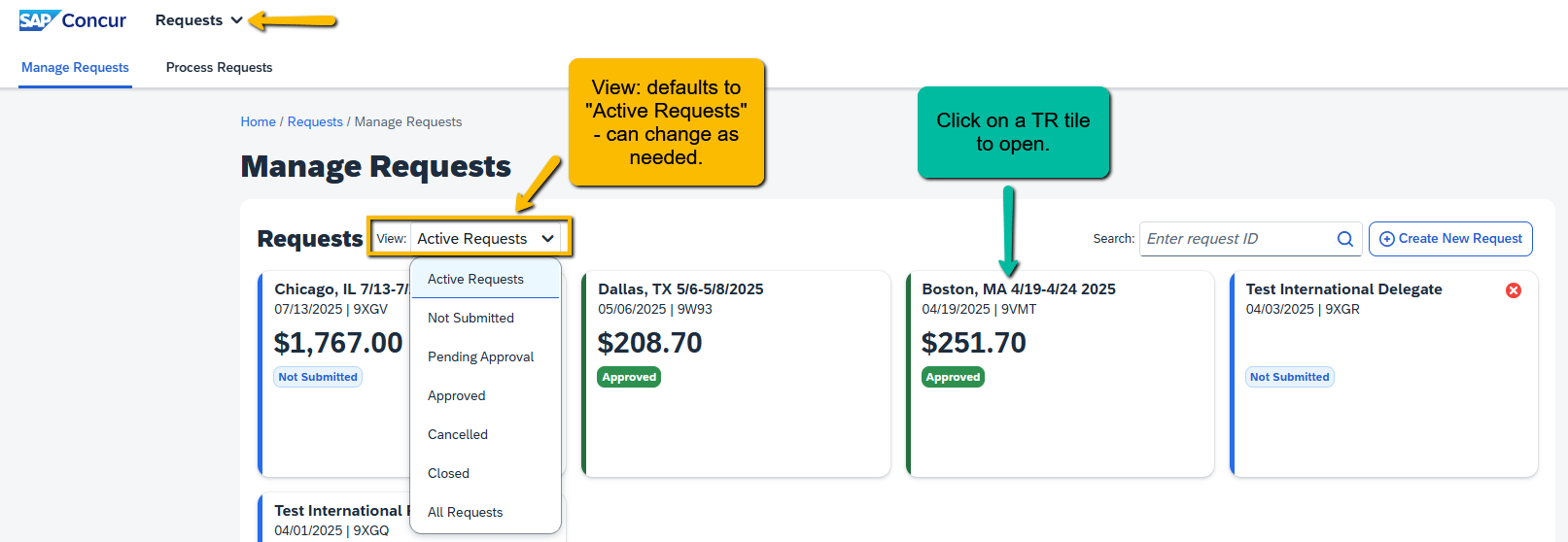
- By selecting Requests from the menu bar at the top left-hand of the Concur screen, travelers can see the status of their TRs on the Manage Requests page.
To see older TRs, use the dropdown to change the View: to All Requests.